Apple Watch Complications Guide: Layouts, Slots & Best Setups
A practical breakdown of watchOS complication slots — circular, rectangular center, corner gauges, and how to organize your wrist dashboard.
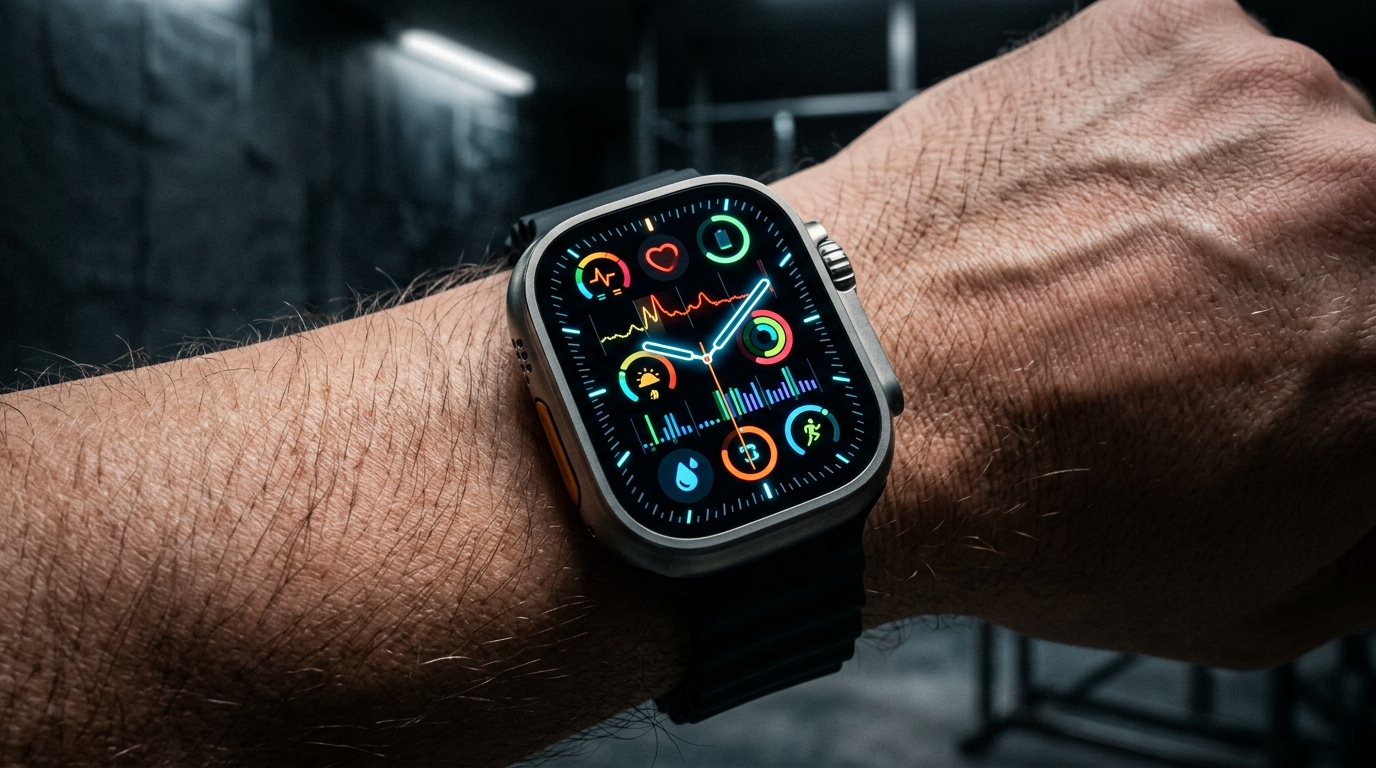
What Complications Do on Your Wrist
In horology, a complication is any function beyond indicating time. On watchOS, complications are dynamic data widgets placed across specific layout slots on your watch face.
Organizing your face layout effectively prevents clutter while keeping critical metrics glanceable within 0.5 seconds of raising your wrist.
Understanding Complication Slot Geometry
watchOS faces provide distinct slot types:
1. Large Rectangular Center: The most valuable real estate on digital faces. Best reserved for complex data graphs — like 60-minute precipitation charts, hourly UV forecasts, or activity ring progress. 2. Circular Gauges: Compact 1:1 circular slots. Excellent for discrete scalar values — battery percentage, current temperature, or step goal progress. 3. Corner System Slots: Curved indicators matching the screen corners of Series 7, 8, 9, 10, and Ultra displays. Ideal for min/max temperature ranges or sunrise times.
Building an Actionable Outdoor Setup
For outdoor activities (hiking, running, trail walking), layout prioritization determines how quickly you spot changing weather conditions:
- Center Slot: Minute-by-minute rain forecast or UV solar arc.
- Top/Bottom Gauges: Temperature, wind speed, and remaining battery percentage.
- Recommended Face: Outdoor Companion arranges temperature, wind, steps, distance, and calories into a split layout.
Key Rules for Face Layouts
- Place primary metrics in the center rectangular slot.
- Avoid duplicating metrics across multiple complications on the same face.
- Keep high-contrast color palettes for legibility under direct sunlight.