Facer Alternatives for Apple Watch: 5 Apps That Don't Drain Your Battery
Looking for a Facer alternative for Apple Watch? Discover 5 battery-friendly apps that deliver gorgeous watch faces and complications without draining your battery.
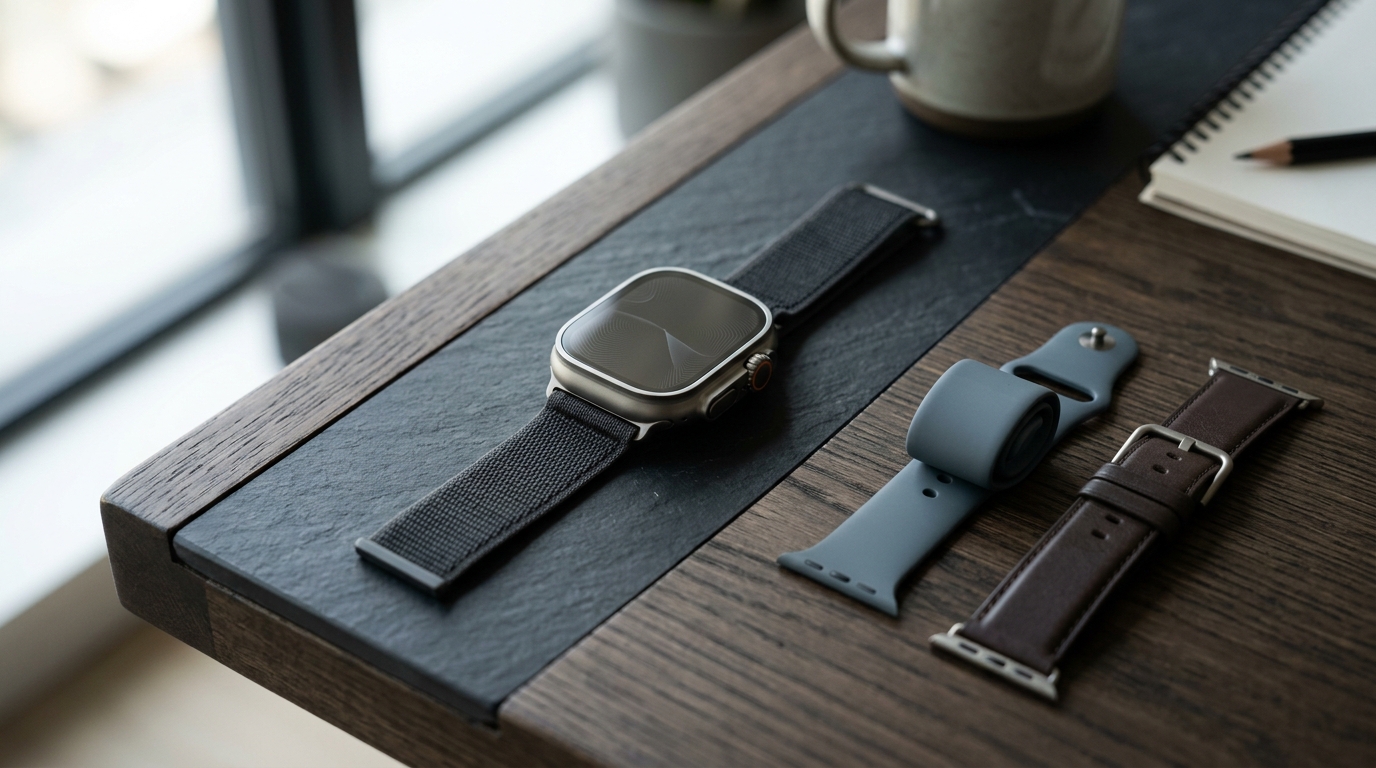
Customizing your smartwatch display should never force you into a daily compromise between personalized visual aesthetics and dependable all-day battery life. For wearable enthusiasts migrating from Wear OS or Tizen to watchOS, searching for a capable facer alternative apple watch solution is usually triggered by a frustrating discovery: installing full-screen animated dials and heavy watch face engines often cuts battery runtime in half. Rather than lasting the expected 18 to 36 hours on a single charge, an Apple Watch running unoptimized third-party face applications can drain down to 20% by late afternoon.
This severe battery drain is not caused by hardware degradation or defective lithium-ion cells. Instead, it stems from the fundamental architectural differences in how Apple designs watchOS compared to competing wearable platforms. To retain fluid performance, deep health sensor monitoring, and multi-day battery endurance, you need customization tools that work in harmony with Apple's native power management subsystems. In this technical guide, we analyze why legacy face engines consume so much energy and present five battery-conscious alternatives that respect your device's power budget.
Why You Need a Facer Alternative for Apple Watch: The Battery Drain Architecture
To understand why finding an efficient facer alternative apple watch owners can rely on is so critical, one must examine how watchOS handles display rendering and background process lifecycles. On Google Wear OS, developers can build standalone watch faces that plug directly into the operating system's native watch face format, offloading ambient updates to low-power microcontroller cores. In contrast, Apple maintains strict architectural barriers around watchOS to guarantee system stability and power efficiency.
The Foreground App Kiosk Illusion
Apple does not provide third-party developers with an open API to build native, replacement watch face engines. The native watch faces you see on your Apple Watch—such as Modular, California, Contour, or Wayfinder—are compiled directly into the watchOS firmware. They execute within a privileged, highly optimized operating system process that interfaces directly with Apple's S-series System in Package (SiP) power management units.
To circumvent this restriction, apps like Facer and older legacy face suites employ a technical workaround: they run as full-screen foreground applications masquerading as watch faces. When you configure your watch to stay on the active app for up to one hour after wake, watchOS is forced to keep an active execution context alive.
- GPU and CPU Core Engagement: Rather than allowing the primary application processor cores to enter ultra-low-power sleep states, the watch must continually cycle its graphics pipeline to render custom animations, rotating seconds indicators, and uncompressed bitmap layers.
- Persistent Display Wake Cycles: Because the operating system treats the watch face as an interactive app rather than a passive system surface, it cannot aggressively throttle display refresh rates down to the power-saving 1Hz ambient floor supported by modern LTPO and LTPO3 display panels.
- Bluetooth Packet Saturation: Transferring heavy custom assets, uncompressed background graphics, and dynamic weather overlays from a paired iPhone via the WatchConnectivity framework creates frequent radio wakes, heating the casing and rapidly depleting the battery cell.
- Preserved Benefit: Running a dedicated foreground application allows for intricate, high-framerate dial animations and unrestricted graphical layouts that resemble mechanical luxury timepieces.
- Explicit Trade-Off: Forcing the graphics engine to remain active prevents the SiP from sleeping, accelerating battery drain from a normal 2%–3% per hour up to 12%–18% per hour.
The WidgetKit Timeline Efficiency Standard
Apple's recommended mechanism for third-party customization is the WidgetKit complication architecture. Rather than running an ongoing execution loop on the wrist, WidgetKit operates on a deterministic timeline provider model.
When a developer designs a complication for watchOS, the companion app generates a discrete batch of future timeline entries—such as anticipated weather changes, calendar appointments, or calculated health milestones—and hands this data over to watchOS. The operating system renders the visual complications at scheduled intervals without waking the underlying third-party application process. By relying strictly on WidgetKit, your Apple Watch maintains sub-second visual responsiveness while keeping background power consumption at near-zero idle current.
Top 5 Battery-Friendly Facer Alternatives for Apple Watch
If you want a distinctive, information-rich, or highly tailored aesthetic on your wrist without tethering yourself to a magnetic charging puck, these five options deliver superior customization while preserving your daily battery life.
1. Space Watch Faces: Native WidgetKit Architecture and Curated OLED Dials
Space Watch Faces represents a modern approach built specifically around the technical limitations and architectural strengths of watchOS. Rather than attempting to hijack your wrist display with an unoptimized foreground app, Space Watch Faces pairs native `.watchface` configuration packages with a library of lightweight, battery-calibrated complications.
Every face in the catalog is designed to take full advantage of Apple's energy-efficient OLED display characteristics. By utilizing true deep black (#000000) canvas backgrounds, the individual organic light-emitting diodes remain completely powered down, cutting display energy consumption by up to 40% compared to brightly colored, full-bleed bitmap artwork.
- Tactical and Utility Density: The Bunker Dashboard face delivers an information-dense digital cockpit that displays mission-critical metrics—including elevation, atmospheric pressure, coordinates, and power gauges—using native complication slots that refresh on scheduled timeline cycles.
- Cardiovascular and Biometric Monitoring: The Vitals Rings face organizes real-time biometric baselines, activity progression, and resting pulse into a harmonious circular layout without running persistent HealthKit queries in the background.
- Zero Runtime Overhead: Because configurations install as legitimate system profiles and native complications, you can learn how to install custom watch faces on Apple Watch in seconds without leaving a battery-draining companion daemon active on your wrist.
- Preserved Benefit: Instantaneous 60fps interaction speed, complete Always-On display compatibility with 1Hz ambient dimming, and zero unprompted app crashes.
- Explicit Trade-Off: Visual layouts are bounded by Apple's standard complication templates and circular/rectangular dial slots rather than freeform drag-and-drop canvas coordinates.
2. Clockology (Configured in Complication Mode)
Clockology is widely recognized in the wearable community as one of the most versatile design platforms available for iOS and watchOS. However, many users unintentionally subject their Apple Watch to rapid battery depletion by using Clockology exclusively in its legacy full-screen app mode.
When configured correctly, Clockology provides a robust native complication engine that serves as an outstanding alternative to Facer:
- Separation of Modes: Clockology allows creators to export designs directly into standard watchOS complication slots (such as Modular Large, Graphic Corner, and Circular gauges) rather than running the full-screen kiosk app wrapper.
- Static Timeline Baking: Complications built within Clockology can be set to update at conservative intervals (e.g., every 15 or 30 minutes), allowing the watch processor to rest between timeline transitions.
- Community Layout Sharing: You can access thousands of community-crafted retro chronographs, sci-fi dials, and minimalist typographies while restricting their footprint strictly to WidgetKit complication slots.
- Preserved Benefit: Access to one of the largest independent watch face design communities on the internet with deep aesthetic versatility.
- Explicit Trade-Off: Complex animated elements like sweeping mechanical second hands must be abandoned in complication mode to prevent excessive battery drain.
3. Widgy: Deep Modular Customization with Timeline Throttling
Originally celebrated for redefining iPhone Home Screen personalization, Widgy offers an exceptionally detailed customization suite for Apple Watch complications. For power users who love tinkering with granular data points, Widgy is a formidable, battery-safe alternative.
- Precise Update Scheduling: Unlike legacy face engines that poll sensors continuously, Widgy lets you explicitly determine the refresh frequency of your data elements. You can configure weather, battery statistics, and device storage metrics to refresh only when meaningful changes occur.
- Native Memory Discipline: Widgy strictly respects Apple's watchOS memory budgets. If a complication design exceeds system thresholds, the app warns the user and automatically optimizes layers to avoid background execution termination.
- Dynamic Smart Rules: You can design complications that dynamically alter their visual presentation based on situational triggers—such as changing dial accents to amber when the battery drops below 20%, or switching data fields during scheduled Focus modes.
- Preserved Benefit: Complete control over design layers, typography, gradient fills, and data sources within native complication boundaries.
- Explicit Trade-Off: The configuration interface possesses a steep learning curve and requires manual assembly on your iPhone before pushing layouts to the watch.
4. Buddywatch & Watchfacely: Curated Native `.watchface` Sharing
If your goal is to discover stunning, polished dial designs without installing third-party rendering engines at all, community-sharing platforms like Buddywatch and Watchfacely offer the ideal zero-overhead solution.
These services do not attempt to replace system interfaces. Instead, they operate as curated galleries where designers share native `.watchface` files. When you download a configuration:
- Built-in First-Party Complications: The downloaded profile automatically populates your watch face using Apple's built-in first-party complications (such as Compass, Workout, Heart Rate, and World Clock) or points you to approved App Store utilities.
- Zero Background CPU Cycles: Because the resulting watch face is 100% native Apple code, it consumes exactly the same amount of power as a watch face configured manually through the official Watch app on iOS.
- Dark Aesthetic Integration: Pairing native community files with optimized dark themes maximizes battery longevity. To explore how dark color choices reduce display power requirements, read our guide on choosing a dark Apple Watch face.
- Preserved Benefit: Absolute zero incremental battery drain, zero background daemon execution, and flawless system stability across all watchOS versions.
- Explicit Trade-Off: You cannot introduce custom typography, bespoke animated graphics, or non-standard gauge geometries that Apple has not natively implemented.
5. Carrot Weather & Lumy: Specialized Glanceable Complication Suites
Sometimes the desire for a third-party face app arises not from a need for decorative novelty, but from a need for superior, specialized information displays. Replacing bloated face suites with dedicated, single-purpose complication apps often yields a vastly superior user experience.
- Carrot Weather: Delivers hyper-customizable weather complications that fit seamlessly into Apple's Infograph, Modular, and Ultra dials. You receive precipitation radar, wind vectors, and UV curves rendered with professional typography while adhering to Apple's strict background refresh guidelines.
- Lumy: Designed specifically for photographers, outdoor enthusiasts, and mindful travelers, Lumy provides elegant complications tracking the solar cycle, golden hour, blue hour, and astronomical twilight. Its visual polish rivals luxury Swiss dials without executing uninvited background sync routines.
- Preserved Benefit: Industry-leading data accuracy, exquisite visual craft, and dedicated development teams that rapidly optimize for new watchOS battery architectures.
- Explicit Trade-Off: Purchasing individual premium complication apps requires a standalone financial investment compared to browsing ad-supported freemium face aggregators.
How to Configure watchOS Settings to Prevent Watch Face Battery Drain
Regardless of which customization tool you select, operating system misconfigurations can quietly exhaust your battery in the background. Auditing your watchOS settings ensures your device operates at peak energy efficiency throughout the day.
1. Adjust the "Return to Clock" Duration
If you previously experimented with full-screen face apps, your watch may still be configured to keep background apps awake for extended intervals.
- Navigate to Settings > General > Return to Clock on your Apple Watch.
- Scroll down to the list of installed applications and locate any third-party face applications.
- Ensure the master setting is configured to Always or After 2 Minutes rather than After 1 Hour. Keeping this window short allows watchOS to suspend inactive application memory and return to the low-power system dial.
2. Audit Background App Refresh Permissions
Applications that update background complications do not all require continuous background execution permissions.
- On your paired iPhone, launch the Watch app.
- Select General > Background App Refresh.
- Disable Background App Refresh globally, or selectively toggle off heavy face engines, social media feeds, and unused utilities while leaving essential fitness and weather tools active.
3. Manage Always-On Display and Complication Visibility
For Apple Watch Series 5 through Series 10 and Apple Watch Ultra models, the Always-On display is a primary consumer of battery capacity.
- Open Settings > Display & Brightness > Always On.
- Tap Show Complication Data and selectively hide sensitive or high-frequency complications (such as continuous heart rate monitors) while your wrist is lowered.
- To accurately assess your device's endurance under various display brightness levels, complication counts, and workout frequencies, run our interactive Apple Watch battery calculator.
- For a comprehensive checklist of advanced operating system optimizations, explore our companion manual on Apple Watch battery life tips.
- Preserved Benefit: Drastically reduces background CPU wakeups and radio transmissions, extending single-charge runtime by up to 35%.
- Explicit Trade-Off: Complications from disabled apps will only refresh when you tap them to launch the full application.
Key Takeaways
- The Architecture Matters: Facer and legacy face engines drain Apple Watch battery because they operate as active foreground kiosk apps, preventing the S-series processor from entering deep sleep states.
- WidgetKit is the Solution: Safe alternatives utilize Apple's native WidgetKit complication architecture, pre-rendering deterministic timelines that consume virtually zero idle battery power.
- Embrace OLED Geometry: Choosing dark, minimalist layouts with deep black backgrounds—such as Bunker Dashboard and Vitals Rings—takes advantage of OLED sub-pixel shutdown to extend operational hours.
- Configure Return to Clock: Ensure your watchOS settings are configured to return to the system clock after two minutes rather than one hour to prevent rogue foreground apps from holding the display awake.
- Prioritize Specialized Complications: Relying on dedicated complication specialists like Widgy, Space Watch Faces, or native `.watchface` profiles delivers tailored luxury aesthetics without sacrificing all-day battery reliability.