Apple Watch Complications Not Working or Updating? 9 Proven Fixes (2026)
Fix Apple Watch complications not updating or stuck on stale data. 9 proven fixes for watchOS Background App Refresh, WidgetKit budgets, and sensor permissions.
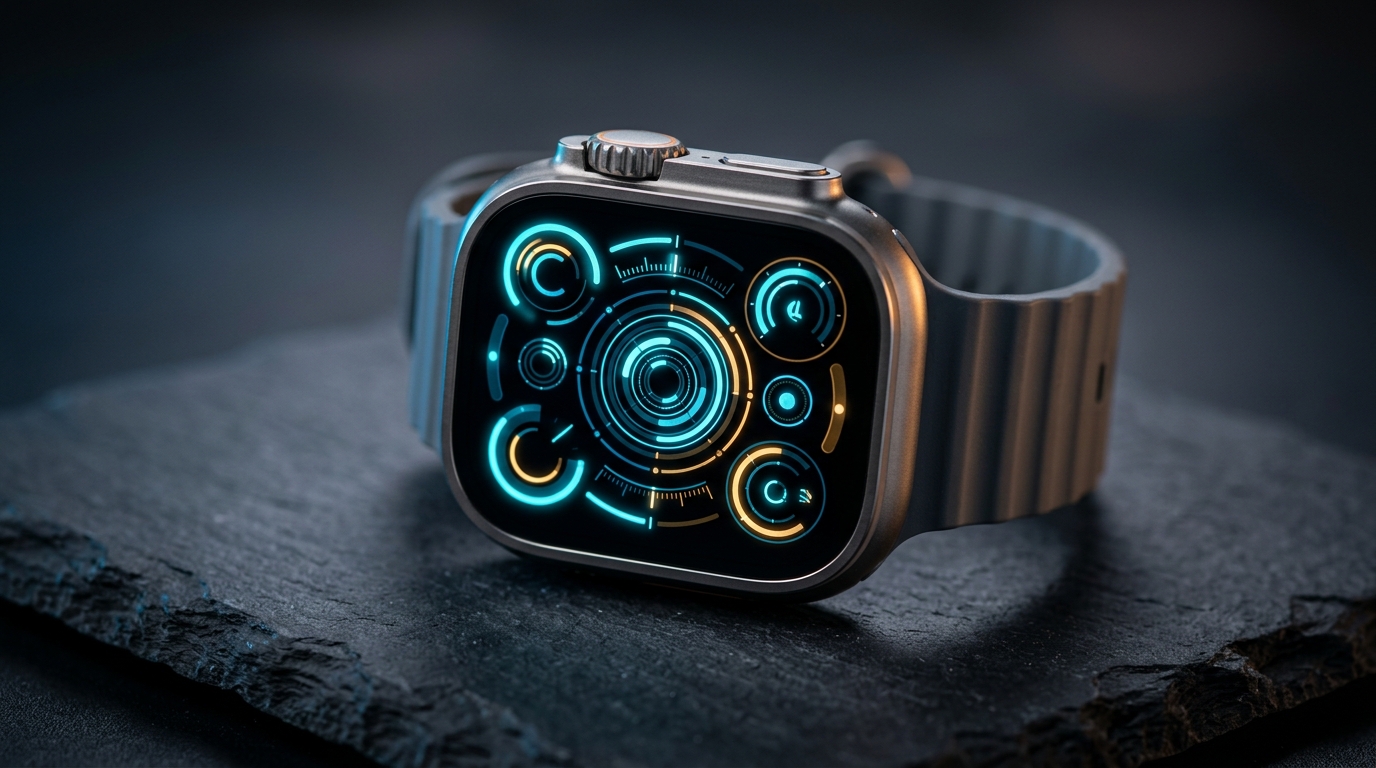
Few experiences on watchOS are more frustrating than raising your wrist to check critical telemetry only to discover stale metrics. A weather slot stuck on yesterday afternoon's temperature, a step gauge reading zero halfway through your workday, or an empty dashed placeholder where heart rate data belongs defeats the entire purpose of wearing an Apple Watch. If you find your apple watch complications not updating automatically in 2026, the underlying culprit is almost never defective hardware. Instead, you are dealing with watchOS background scheduling policies, power budgets, or broken communication handshakes between iPhone and Apple Watch.
Modern watchOS handles watch face complications through Apple's WidgetKit framework. Unlike an iPhone app running actively in the foreground, complications execute inside strictly throttled background runtime allocations. Understanding how the operating system balances data freshness against battery preservation is the key to identifying why your complications freeze—and exactly how to restore instant live sync.
Why Your Apple Watch Complications Are Not Updating: The watchOS Budget Architecture
To troubleshoot broken complications effectively, you must understand how watchOS serves data to your watch face. Under the WidgetKit architecture, complication extensions do not maintain an always-on, real-time background execution loop. Doing so on a battery with less than 600 mAh capacity would drain an Apple Watch Series 10 or Ultra 2 in a few hours.
Instead, watchOS uses a timeline model (`TimelineProvider`). An app generates a sequence of timed entries predicting future states (for instance, upcoming calendar events or hourly forecasted temperatures) and hands this timeline to the watchOS rendering compositor. When unexpected live updates occur—such as fluctuating pulse telemetry or new activity metrics—the app must request a budget-backed timeline reload.
First-Party vs. Third-Party Timeline Budgets
Apple enforces a fundamental asymmetry between native and third-party complications:
- Native Daemons (First-Party): System services like Activity Rings, Workout, and Apple Weather run as privileged system processes. They bypass standard WidgetKit constraints and read sensor registers directly without consuming public API reload budgets.
- Third-Party Extensions: Apps from the App Store operate under strict daily execution budgets. A third-party complication is typically allocated between 50 and 70 background wakeups per 24-hour cycle. When an app depletes its daily budget, watchOS suspends further background execution until the next midnight reset.
The 9 Proven Fixes for Stuck or Stale Complications
Work through these nine diagnostic steps sequentially. They move from the most frequent permission and scheduling issues to deeper network and cache recovery protocols.
1. Toggle Background App Refresh on Both iOS and watchOS
Background App Refresh is the communication conduit through which complication extensions receive push payloads and fetch scheduled timeline updates. If this toggle is disabled globally or restricted for an individual app, the complication will render only cached static data until you manually launch its companion app.
- On your paired iPhone, navigate to Settings > General > Background App Refresh. Confirm the master toggle is set to Wi-Fi & Cellular Data, then scroll down the list to verify the specific app is enabled.
- Open the Watch app on your iPhone, select the My Watch tab, tap General > Background App Refresh, and verify both the master toggle and individual app sliders are active.
- On your Apple Watch, open Settings > General > Background App Refresh to ensure local wrist settings mirror the phone configuration.
- Preserved Benefit: Reactivates suspended background fetch daemons, allowing WidgetKit extensions to resume scheduled timeline invalidations.
- Explicit Trade-Off: Enabling background refresh across dozens of unused apps increases passive battery consumption by approximately 2% to 4% over a typical 18-hour operating window.
2. Set Weather Location Permissions to "Always" and Enable Precise Location
Weather complications—including dense dials like the Weather Dashboard—are the single most common complication to stall. When you travel between cities or neighborhoods, watchOS must query your updated geographic coordinates to fetch localized meteorological radar and barometric data.
If the app's location permission is configured to "While Using the App," watchOS blocks background geofencing queries whenever the screen turns off.
- On your iPhone, open Settings > Privacy & Security > Location Services.
- Verify Location Services is switched on.
- Scroll down and select your weather provider (such as Apple Weather, Carrot Weather, or AccuWeather).
- Select Always under the access options.
- Ensure the Precise Location toggle is switched ON.
- Preserved Benefit: Weather complications update meteorological data seamlessly whenever you cross cellular microclimate boundaries, eliminating "Loading..." placeholder rings.
- Explicit Trade-Off: Continuous background geofencing wakes the iPhone baseband GPS receiver intermittently, producing minor additional energy draw on your primary phone battery.
3. Re-Authorize HealthKit and Biometric Sensor Privileges
Complications displaying real-time physiological indicators—such as the Heart Rate Live monitor or the Step Counter complication—rely on continuous HealthKit authorization. Following major watchOS or iOS system updates, cryptographic security keys or permission tokens between paired devices can become invalid, causing biometric dials to display blank dashes.
- Open the Health app on your iPhone, tap your profile avatar in the upper-right corner, and select Apps and Services.
- Locate the affected third-party fitness application.
- Verify all data categories—specifically Active Energy, Heart Rate, Resting Heart Rate, and Steps—are explicitly toggled on under Allow [App] to Read.
- On your Apple Watch, open Settings > Privacy & Security > Health and verify identical permissions are active at the hardware sensor level.
- Preserved Benefit: Restores real-time continuous sensor readings directly to your watch face complications without manual app launches.
- Explicit Trade-Off: High-frequency HealthKit observer queries (`HKObserverQuery`) wake the heart rate photoplethysmography (PPG) sensors more frequently, requiring tighter daily charging habits.
4. Audit Low Power Mode, Focus Filters, and Sleep Schedules
Apple's battery-saving and productivity modes enforce severe execution boundaries designed to throttle ambient energy expenditure.
- Low Power Mode: Introduced in watchOS 9 and enhanced in watchOS 11 and 12, Low Power Mode turns off Always-On display, disables background heart rate and blood oxygen readings, and halts background app refreshes. When active, third-party complication updates are frozen entirely. Verify the yellow circle indicator is absent and check Settings > Battery > Low Power Mode.
- Focus Modes (Work, Personal, Sleep): Focus profiles can silence background app push notifications and suspend network handoffs. Check Settings > Focus on your iPhone, select your active Focus, and verify that your watch complications' parent apps are listed under Allowed Apps.
- Preserved Benefit: Full restoration of dynamic real-time data pushes and sub-minute complication timeline invalidations.
- Explicit Trade-Off: Disabling Low Power Mode reduces operational battery endurance back to standard baseline durations (18 hours on Series 10; 36 hours on Ultra 2).
5. Execute a Sequenced Dual-Device Restart
A simple restart often fails to resolve communication deadlocks because the Bluetooth Low Energy (BLE) link between the Apple Watch daemon (`wcd`) and the iPhone companion framework remains partially cached. Performing a sequenced reboot re-initializes clean CoreBluetooth advertising channels and flushes memory buffers.
- Press and hold the Side Button on your Apple Watch, tap the Power icon in the top right, and slide Power Off.
- On your iPhone, hold the Side Button and Volume Up, then slide Power Off.
- Leave both devices powered down for 60 seconds to discharge volatile RAM.
- Power on your iPhone first. Allow it to complete cellular registration, unlock the device once using your passcode, and verify Wi-Fi connectivity.
- Power on your Apple Watch second. Once booted, enter your wrist passcode and wait two minutes for initial Bluetooth handshake synchronization.
- Preserved Benefit: Purges hung background daemon processes and resolves corrupt inter-process communication (IPC) queues without data loss.
- Explicit Trade-Off: Requires roughly four minutes of offline downtime while both hardware platforms complete initialization sequences.
6. Invalidate Render Caches via the "Watch Face Swap" Technique
In certain watchOS versions, the compositing graphics layer freezes an individual watch face instance in memory while the underlying complication data extension continues to update properly in the background. Swapping watch faces forces the compositor to release the cached Metal texture and generate a fresh visual frame.
- Press firmly on your current Apple Watch face to enter the gallery selector.
- Swipe left or right to switch to an alternative face, such as an architectural Blueprint Dashboard, and tap to activate it.
- Wait 30 seconds while the alternative face mounts its complication bundle.
- Swipe back to your primary watch face.
- If the complication remains frozen, delete the individual watch face from the selector by swiping up on it and tapping Delete, then recreate the layout from scratch.
- Preserved Benefit: Forces the watchOS SpringBoard window manager to discard stale rasterized complication images immediately.
- Explicit Trade-Off: Deleting and rebuilding complex multi-complication faces requires re-assigning color variants and slot assignments.
7. Force-Close and Relaunch Misbehaving Companion Apps
When a single complication freezes while other slots on the same dial update accurately, the host app's background worker thread has likely crashed or deadlocked in memory.
- On your Apple Watch, double-press the Digital Crown (or press the Side Button, depending on your watchOS configuration) to open the App Switcher.
- Swipe horizontally to find the misbehaving app card.
- Swipe left across the card and tap the red "X" icon to terminate the process.
- Press the Digital Crown to return to your watch face, then tap the complication directly to launch the app cleanly.
- Allow the app to refresh its foreground interface for 15 seconds, then lower your wrist to return to the clock face.
- Preserved Benefit: Kills unresponsive local watchOS app threads and triggers an immediate foreground timeline refresh request.
- Explicit Trade-Off: None; terminated processes restart cleanly upon the next user interaction.
8. Reset the WatchConnectivity Bluetooth Transport Layer
Communication between paired devices relies on Apple's `WatchConnectivity` framework (`WCSession`). When the paired radio session encounters packet loss or transmission timeouts, background transfer queues stall, preventing new telemetry from reaching the wrist.
- On your iPhone, open Settings > Bluetooth.
- Toggle the master Bluetooth switch OFF.
- Wait 10 seconds, then toggle Bluetooth back ON.
- On your Apple Watch, verify the connection status icon in the Control Center shows a green phone glyph rather than a red disconnected icon.
- Preserved Benefit: Re-establishes the encrypted peer-to-peer Wi-Fi/Bluetooth bridge between iPhone and Watch, flushing stalled transmission buffers.
- Explicit Trade-Off: Momentarily disconnects active accessories such as AirPods or fitness chest straps.
9. Remove and Re-Add the Affected Complication Slot
If an app update modified complication metadata or WidgetKit descriptors, the active watch face may be referencing an obsolete complication identifier. Re-binding the slot registers the new schema with the watchOS complication server.
- Long press the watch face to enter customization mode and tap Edit.
- Swipe horizontally to the Complications pane.
- Tap the malfunctioning complication slot.
- Scroll through the picker and select Off or None.
- Press the Digital Crown twice to save the change and exit edit mode.
- Re-enter edit mode immediately, tap the empty slot, and re-select the target complication.
- For a comprehensive breakdown of compatible complication slots and quadrant layouts across different dials, refer to our detailed guide on how to add complications on Apple Watch and our complete mastering watchOS complications guide.
- Preserved Benefit: Resolves orphaned schema references following third-party app updates and forces a full timeline reload.
- Explicit Trade-Off: Requires navigating the watchOS on-wrist customization picker.
How WidgetKit Timeline Budgets Affect Complication Refresh Rates
Even when every permission and network setting is configured flawlessly, third-party Apple Watch complications do not refresh with millisecond frequency. Apple deliberately designs watchOS to favor battery conservation over instantaneous background data streaming.
The Budget Allocation Mechanics
Each third-party application on Apple Watch is granted a replenishment budget every 24 hours. Under normal circumstances:
- An app that provides a complication on your active watch face receives priority background runtime.
- If a complication is removed from the active face, its background refresh allowance drops dramatically.
- High-frequency updates—such as dynamic stock tickers or live sports scores—must utilize Apple Push Notification service (APNs) background push payloads with complication push tokens (`complication push notifications`).
- If an app exhausts its reload allotment by requesting timeline invalidations too frequently, watchOS throttles subsequent reload calls until the next midnight allocation cycle.
Key Takeaways
- Check Background App Refresh First: Both iPhone and Apple Watch must have Background App Refresh enabled globally and for the specific app.
- Location Requires "Always" Access: Weather widgets will stall unless granted "Always" background location privileges with "Precise Location" enabled.
- Biometric Privacy Checks: Health complications require active HealthKit read permissions under iOS Settings > Health > Data Access & Devices.
- Low Power Mode Suspends Complications: Verify that yellow-ring Low Power Mode is disabled if you require live ambient metrics.
- Reboot in Sequence: When sync deadlocks occur, shut down both devices and boot the iPhone first before powering on the Apple Watch.
- Respect Timeline Budgets: Third-party complications operate within daily background execution limits (50–70 updates/day); they are not designed for sub-second continuous streaming.