Best Apple Watch Faces for Work & Productivity (2026 Guide)
Discover the best apple watch face for work and productivity. Optimize your wrist for deep work, task management, and professional settings.
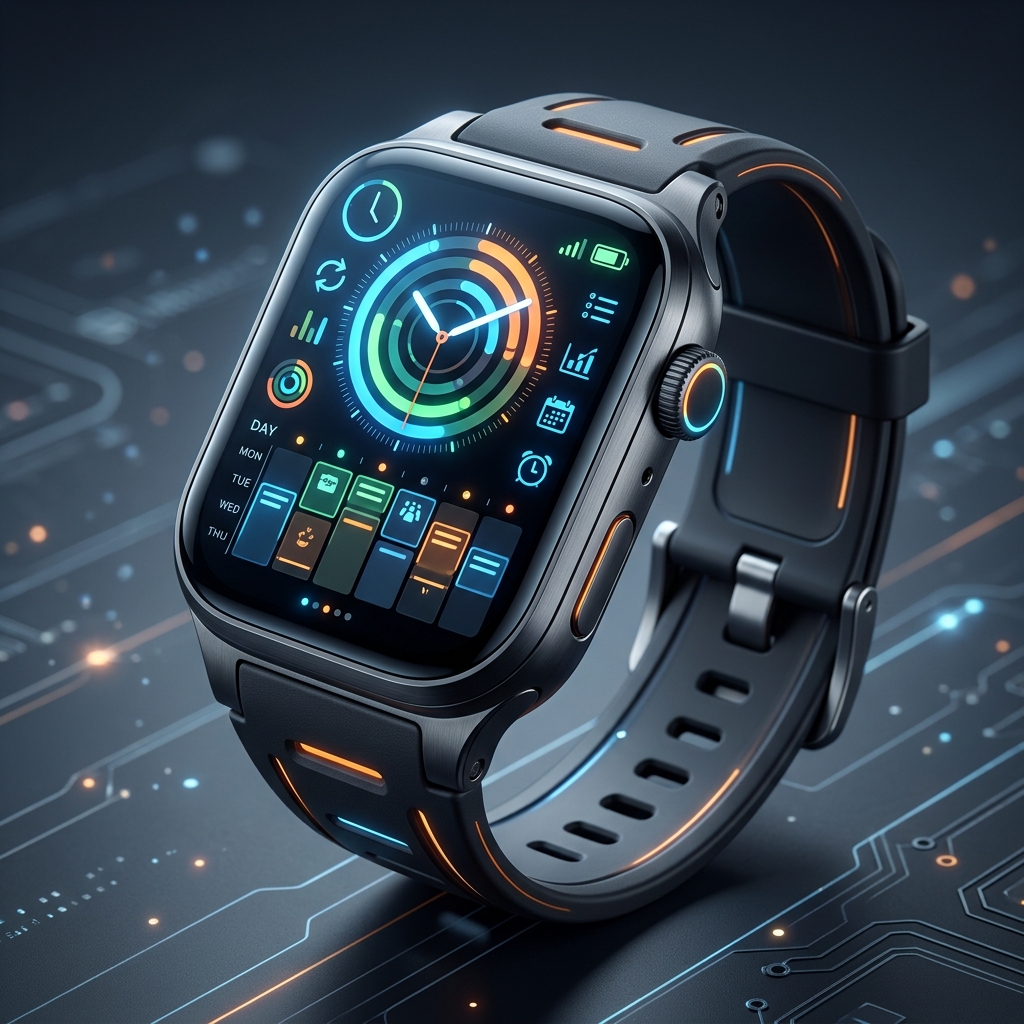
The Apple Watch is a powerful communication hub, but without proper configuration, it can quickly become a relentless source of distraction during your workday. Finding the best apple watch face for work isn’t just about aesthetics; it’s about strategically filtering information so you can maintain deep work, manage your schedule, and stay on top of daily tasks without constantly pulling out your iPhone.
In this comprehensive guide, we'll explore how to transform your Apple Watch from a notification machine into a tailored productivity tool. We will highlight the top custom watch faces designed specifically for professional environments, break down the most effective complications for time management, and show you how to leverage watchOS Focus Modes to automatically adapt your wrist to your workday.
Why Your Watch Face Matters for Productivity
Every time you glance at your wrist, you consume cognitive bandwidth. If your watch face is cluttered with activity rings, social media alerts, or irrelevant data, you are actively inviting distraction into your workflow. The best apple watch face for work minimizes this cognitive load by presenting only high-yield information: your next meeting, your most critical task, or simply the time.
By curating your watch face specifically for your office hours, you create a physical boundary between your personal life and your professional responsibilities. This intentional design choice helps you stay grounded in the present task.
The Role of Complications in the Office
Complications are the widgets that live on your watch face. When optimizing for work, you need complications that offer immediate value.
- Calendar / Schedule: The most critical complication for any professional. Seeing your next meeting time and location at a glance prevents the anxiety of constantly checking your phone.
- Task Managers: Apps like Things 3, Todoist, or Apple's native Reminders can display your next immediate to-do item directly on the dial.
- Time Tracking: For freelancers and consultants, having a Toggl or Just Timers complication allows for seamless time logging without breaking focus.
- Utility & Environment: Keeping an eye on your battery percentage and local weather is universally helpful and prevents you from reaching for your phone.
Explicit Trade-Off: High-information density faces can feel cluttered and stressful. If you easily feel overwhelmed by seeing a full schedule, a minimalist face without these complications might actually serve your productivity better.
Top Custom Apple Watch Faces for the Workplace
While Apple provides excellent native options like Infograph and Modular, the custom watch faces available at Space Watch Faces offer unique designs tailored for specific professional vibes. Here are our top picks for the best apple watch face for work:
1. Digital Cluster (`cluster_modern_01`)
For the data-driven professional who needs maximum information density without sacrificing clean aesthetics, the Digital Cluster is unmatched. Designed to resemble high-end automotive instrument panels, it organizes data into distinct, readable zones.- Why it works for productivity: The Digital Cluster allows you to map multiple data streams simultaneously. You can track dual time zones (essential for remote teams), monitor your next appointment, and keep an eye on your battery life all on one screen. The structured layout prevents the data from feeling chaotic.
- Best for: Project managers, remote workers, and anyone coordinating across multiple time zones.
- Link: Get the Digital Cluster Face
2. The Bunker Dashboard (`bunker_01`)
When you need to activate "monk mode" and focus entirely on the task at hand, the Bunker Dashboard is your ideal companion. Inspired by brutalist architecture and tactical gear, this face strips away unnecessary flair in favor of stark, high-contrast utility.- Why it works for productivity: Bunker is about focus. It utilizes bold typography and muted color palettes to ensure that only the most critical information catches your eye. It is the perfect face to pair with a strict "Do Not Disturb" Focus Mode, ensuring zero distractions.
- Best for: Developers, writers, and anyone engaging in deep, uninterrupted work sessions.
- Link: Get the Bunker Face
3. The Retro Digital (`retro_01`)
Sometimes, the best way to move forward is to look back. The Retro Digital face channels the spirit of 1980s digital watches, offering a nostalgic yet highly functional layout.- Why it works for productivity: The Retro face is inherently minimalist. It provides the time, the date, and perhaps one small complication in a highly legible, low-stress format. In formal meetings where a glowing, complication-heavy smartwatch might seem inappropriate or distracting, the Retro face offers a subtle, professional alternative.
- Best for: Executives, creatives, and professionals in formal corporate environments.
- Link: Get the Retro Face
Automating Your Workflow with watchOS Focus Modes
Having the perfect work face is only half the battle; ensuring it's active when you need it is the other. watchOS integrates seamlessly with Apple's Focus Modes, allowing you to automate your watch face based on your current context.
Instead of manually swiping between your weekend face and your work face, you can set your Apple Watch to automatically transition to your productivity layout when you arrive at the office or when your workday begins.
How to Link a Watch Face to a Work Focus
To automate your productivity setup, follow these steps using your iPhone:
1. Open the Settings app on your iPhone. 2. Navigate to Focus and select your Work profile (or create a new one). 3. Scroll down to the Customize Screens section. 4. Under the Apple Watch icon, tap Choose. 5. Select your chosen productivity face (e.g., Digital Cluster or Bunker). 6. Ensure your Work Focus is set to trigger automatically via a Smart Activation schedule (based on time, location, or app usage).
- Menu Path: `Settings > Focus > Work > Customize Screens > Apple Watch`
Explicit Trade-Off: Relying on location-based Smart Activation can sometimes be unreliable if your GPS drifts, potentially triggering your work face when you are just grabbing coffee near the office. Time-based schedules are often more consistent.
For a deeper dive into optimizing your notifications, read our dedicated Apple Watch Focus Modes productivity guide.
Managing Notifications for Deep Work
Even the best apple watch face for work will fail to keep you productive if your wrist is constantly buzzing with group chat notifications and social media alerts. Effective notification management is non-negotiable.
The "VIP Only" Approach
During work hours, your Apple Watch should only alert you to things that require immediate, urgent attention. Everything else can wait until you check your phone.
1. Open the Watch App on your iPhone. 2. Navigate to Notifications. 3. Review every app in the list. Ask yourself: "Does this app deserve to interrupt my deep work?" 4. For most apps, select Send to Notification Center (which silently collects alerts) or turn them off entirely for the watch. 5. Reserve haptic buzzes only for VIP emails, calendar events, and direct messages from critical colleagues or family members.
By ruthlessly pruning your notifications, you transform your Apple Watch from a source of distraction into a trusted gatekeeper of your attention.
Conclusion: Crafting Your Professional Wrist
Optimizing your Apple Watch for the workplace is a highly personal process. The best apple watch face for work is ultimately the one that supports your specific daily rhythms. Whether you thrive on the data density of the Digital Cluster, the tactical focus of the Bunker, or the minimalist elegance of the Retro face, the goal remains the same: reclaiming your attention.
Experiment with different complications, automate your transitions with Focus Modes, and be ruthless with your notification settings. With a few deliberate adjustments, your Apple Watch can evolve into one of your most valuable productivity assets. For more insights on maximizing your device, explore our Apple Watch battery life tips to ensure your watch survives even the longest workdays.