How to Customize Photo Watch Face Apple Watch: Depth Guide
Learn how to customize photo watch face Apple Watch setups with 3D depth effect, custom portrait cutouts, safe zone framing, and complication layouts.
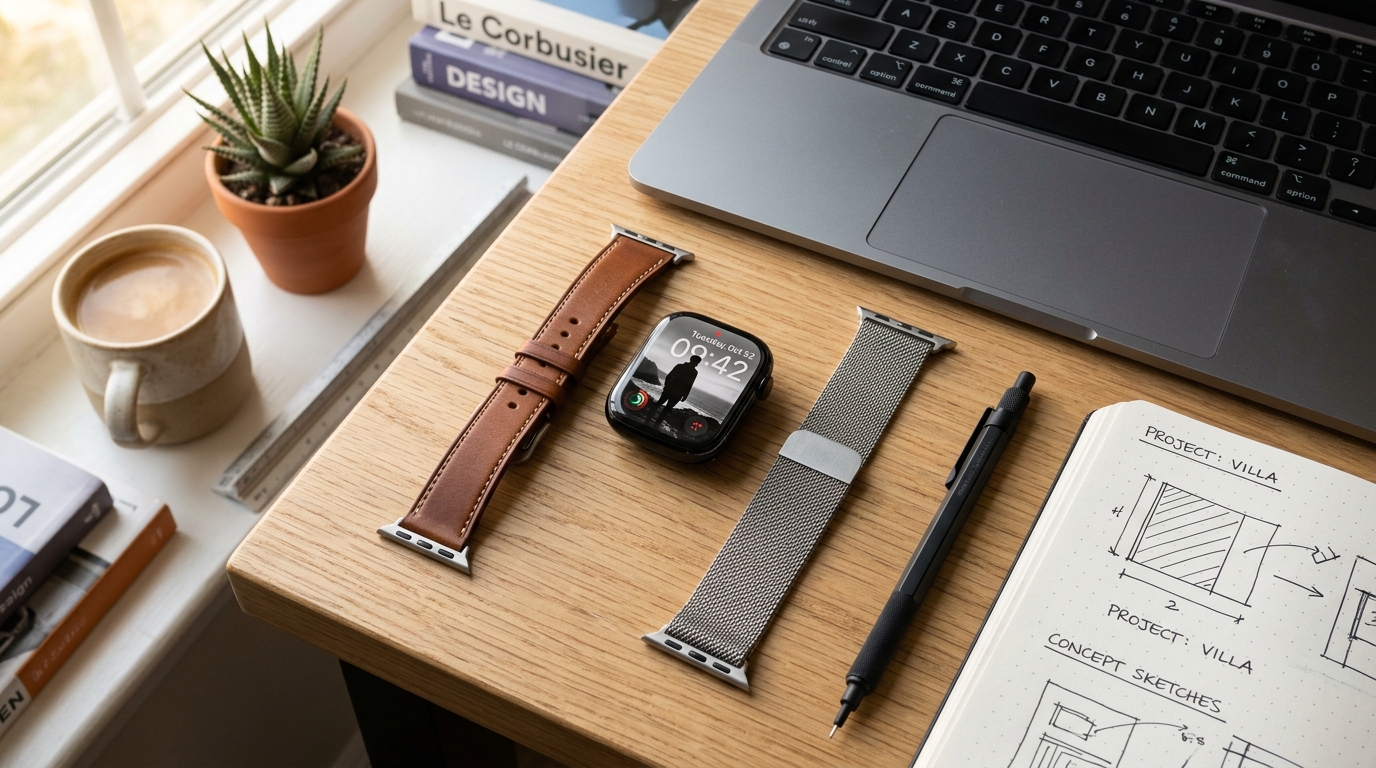
Transforming your personal photography into an immersive wrist display turns your Apple Watch from a standard fitness tracker into an expressive design piece. Apple's machine learning segmentation engine separates foreground subjects from background scenes, allowing the digital clock typography to tuck neatly behind human silhouettes, pets, or architectural contours. However, configuring this multilayered look requires precise image composition, correct watchOS typography settings, and an understanding of complication restrictions. Learning how to customize photo watch face apple watch layouts unlocks the delicate balance between three-dimensional depth and glanceable daily utility.
When done properly, depth-effect watch faces deliver a refined editorial aesthetic reminiscent of high-end magazine covers. When done poorly, subjects clip awkwardly against numbers, clock digits disappear behind harsh contrasts, and essential complications vanish. This comprehensive guide covers exact configuration steps, cropping math, technical depth-map constraints, and practical trade-offs for all modern watchOS devices.
How to Customize Photo Watch Face Apple Watch with Depth Effect
Setting up a depth-enabled photo dial can be accomplished directly from your iPhone Photos library, through the companion Watch app, or on the Apple Watch display itself. While on-wrist creation offers speed, using your paired iPhone provides significantly greater control over cropping boundaries, focal zoom, and font weights.
Method 1: Creating via the iPhone Photos App
The most direct workflow begins inside iOS Photos, where you can inspect depth metadata before committing the image to your wrist:
- Open the Photos app on your iPhone and locate a photograph featuring a distinct subject with clean edge separation.
- Tap the Share button (the square icon with an upward-pointing arrow) in the lower-left corner.
- Scroll through the action sheet and select Create Watch Face.
- Choose Photos Watch Face (in watchOS 11 and later, the dedicated Portraits dial was unified into the enhanced Photos face engine).
- Tap Time Position and select Top Behind. This instructs watchOS to render the time typography in a virtual plane between your background and the isolated foreground subject.
- Adjust the typography style, choosing between Classic, Modern, Rounded, or Bold numerals to complement the visual weight of your photo.
- Tap Add at the top right to compile the watch face and push it directly to your active Apple Watch.
- Preserved Benefit: Immediate verification of depth rendering directly within iOS photo tools before pushing to the wearable.
- Explicit Trade-Off: Restricts immediate complication selection to a basic date readout above the time during initial creation.
Method 2: Curating via the Watch App Face Gallery
For greater customization of typography color washes and complication positions, configure your dial through the iOS Watch application:
- Open the Watch app on your iPhone and select the Face Gallery tab in the bottom navigation bar.
- Scroll down to the Photos category and select the template.
- Under the Content header, tap Choose Photos... to select up to 24 curated images from your library.
- Under Style, toggle the layout between Top Behind, Top Front, or Bottom Front. If your subject has ample vertical headroom, Top Behind activates the 3D depth effect.
- Select a subtle color tint or monochrome duotone wash if your photo contains busy lighting that interferes with clock legibility.
- Select your top complication slot (such as Calendar, Activity rings, or Weather temperature).
- Tap Add to transfer the completed layout to My Watch.
- Preserved Benefit: Allows batch curation of up to 24 rotating portrait images with synchronized typography and color styling.
- Explicit Trade-Off: Requires switching back and forth between the photo library and the Watch application interface to preview individual crop boundaries.
Method 3: Direct On-Wrist Modification
If you already have a synced photo album on your Apple Watch:
- Wake your Apple Watch display and press firmly on your current watch face to enter the switcher carousel.
- Swipe left until you reach the New (+) button and tap it.
- Turn the Digital Crown to scroll to Photos, then tap to add.
- Press firmly and tap Edit to cycle through color washes and time position options.
Technical Depth Map Mechanics: Why the Depth Effect Fails
A common frustration among Apple Watch owners is seeing the digital clock refuse to slide behind their subject, defaulting instead to a standard flat overlay. The watchOS depth effect is not a random visual trick; it relies on strict computer vision rules and depth metadata. Understanding these technical rules prevents hours of trial and error.
1. Portrait Metadata vs. Neural Segmentation
On iPhones equipped with dual cameras or LiDAR scanners, photos shot in Portrait Mode embed a dedicated depth map (disparity buffer) directly into the image file container. Apple Watch uses this hardware-assisted disparity data to determine the exact millimetric boundary between the person or pet and the background.
While modern watchOS versions can use on-device machine learning to segment standard non-portrait photos, hardware-generated Portrait Mode captures achieve vastly superior edge fidelity around hair strands, fabric textures, and pet fur. If your image was downloaded from the web, compressed via messaging apps, or captured with older single-lens cameras, watchOS may fail to calculate the depth plane entirely.
2. The 25-Percent Headroom Rule
The digital clock needs spatial clearance. Apple's rendering engine requires approximately 20% to 30% of open background space at the top edge of the frame to position the clock numbers.
If your subject's forehead, hat, or hair touches the upper 10% of the display frame, watchOS will automatically disable the depth layer and force the clock into the foreground. To maintain depth layering, the subject's silhouette should occupy the lower-to-middle 70% of the vertical canvas, leaving uninterrupted negative space (such as open sky, clean walls, or blurred foliage) behind the numerals.
3. Edge Contrast and Occlusion Thresholds
If the subject conceals more than 40% of the digital clock digits, watchOS intentionally shuts off the depth effect. Apple prioritizes time readability over artistic immersion: if the hour or minute digits cannot be identified at a glance, the system overrides user preferences and places the clock on top.
- Preserved Benefit: Crisp visual separation between background depth and time typography without illegible digit masking.
- Explicit Trade-Off: Imposes strict photographic framing constraints; tight close-up headshots cannot support depth layering.
Perfecting Ratios and Dimensions with Dedicated Tools
One of the primary reasons custom photo faces look blurry or misaligned on Apple Watch is aspect ratio distortion. iPhones capture photos in 4:3 native ratio, whereas modern Apple Watch screens feature taller aspect ratios with distinct OLED corner radii. When you assign an unedited 4:3 photograph to your watch face, iOS performs an aggressive center crop, frequently chopping off heads or pushing subjects into the clock occlusion zone.
Every Apple Watch generation features unique display dimensions:
- Apple Watch Ultra 2 & Ultra 1 (49mm): 410 x 502 pixels (corner radius 42px)
- Apple Watch Series 10 (46mm): 416 x 496 pixels (corner radius 48px)
- Apple Watch Series 10 (42mm): 374 x 446 pixels (corner radius 44px)
- Apple Watch Series 9, 8 & 7 (45mm): 396 x 484 pixels (corner radius 44px)
- Apple Watch Series 9, 8 & 7 (41mm): 352 x 430 pixels (corner radius 40px)
- Apple Watch SE & Series 4–6 (44mm): 368 x 448 pixels (corner radius 42px)
To learn more about how physical display cases and screen resolutions influence watch face design across models, explore our comprehensive analysis of Apple Watch face sizes compared. For additional inspiration on minimalist palettes, read our showcase of aesthetic Apple Watch faces.
- Preserved Benefit: Pixel-perfect image alignment tailored to the exact resolution and curvature of your specific Apple Watch chassis.
- Explicit Trade-Off: Requires pre-cropping your wallpaper in a browser tool before syncing to your iPhone camera roll.
Complication Strategy: Balancing Information and Depth Layering
The most common reason the depth effect suddenly disappears after a user edits their watch face is complication conflict. Apple enforces strict layout hierarchy: the depth effect is incompatible with bottom complications and multi-line modular widgets on the Photos face.
Why Bottom Complications Break Depth
When you configure a Photos watch face, Apple allows up to two complication slots: 1. Top Sub-Dial / Header Slot: Sits directly above the time digits (typically displaying the date, upcoming calendar event, or current temperature). 2. Bottom Complication Slot: Sits in the lower third of the display.
If you activate a bottom complication—such as a large battery readout, circular activity rings, or workout launcher—the watchOS UI compositor immediately disables the depth effect. Because the foreground subject occupies the lower half of the screen, rendering a bottom complication would either place UI text directly over the subject's face or require complex double-layer masking that degrades rendering performance.
When to Choose Depth Over Telemetry
If your primary objective is health tracking, fitness pacing, or complex environmental data, a photo-based dial will feel functionally restrictive. In scenarios where you need continuous access to five or six data points simultaneously, structured dashboard faces offer far greater efficiency.
For example, our playful Doodle Dashboard face organizes real-time battery status, step counts, weather conditions, and active burn calories within an expressive, illustrated visual shell. Similarly, the technical Blueprint Dashboard face packs comprehensive system vitals into a structured architectural layout without sacrificing readability.
If you want to master configuring multi-slot complications and building modular dashboards from scratch, review our comprehensive walkthrough on how to make an Apple Watch face.
- Preserved Benefit: Elegant, unobstructed portrait presentation that highlights personal imagery with clean aesthetic focus.
- Explicit Trade-Off: Forfeits lower-screen complications, limiting real-time data to a single top header readout.
Curating Multi-Photo Dynamic Shuffle Albums
Instead of staring at a single static picture all day, watchOS allows you to link a dynamic photo stream to your watch face. You can curate up to 24 distinct photos that rotate dynamically throughout the day.
Setting Up Smart Shuffles
To configure dynamic rotation:
- Open the Watch app on your iPhone and navigate to Face Gallery > Photos.
- Under Content, choose Album or Dynamic.
- The Dynamic option uses on-device intelligence to surface images from categories such as People, Pets, Nature, or Cities.
- Set the Shuffle Frequency: choose between On Tap, On Wrist Raise, or Hourly.
- In watchOS display settings (`Settings > Display & Brightness > Always On`), ensure Always-On display behavior dims the wallpaper smoothly without disruptive flashing.
- Preserved Benefit: Continuous visual variety featuring family, pets, or travel moments without manually swapping watch faces.
- Explicit Trade-Off: Mixed-album curations cause inconsistent depth effect behavior if individual photos lack uniform composition and lighting.
Key Takeaways
- Subject Headroom is Critical: Leave 20% to 30% of empty negative space above your subject's head so the digital time digits can slide behind without exceeding the 40% occlusion limit.
- Complication Hierarchy Limits Slots: Adding a bottom complication automatically deactivates the 3D depth effect on the Photos watch face; stick to the single top header slot.
- Hardware Portrait Data Yields Best Results: While machine learning can isolate standard photos, pictures shot using iPhone Portrait Mode provide the sharpest depth masks around hair and edges.
- Pre-Cropping Eliminates Distortion: Use the Apple Watch Photo Face Studio & Cropper to preview your exact case dimensions and corner radii before transferring images.
- Shuffle Collections Require Uniformity: For a seamless dynamic shuffle experience, verify that all 24 curated photos meet composition standards to prevent the depth effect from dropping intermittently.