Apple Watch Battery Draining Fast After Update: Fixes (2026)
Is your Apple Watch battery draining fast after an update? Learn why post-update drain happens, how to audit background processes, and 8 proven fixes.
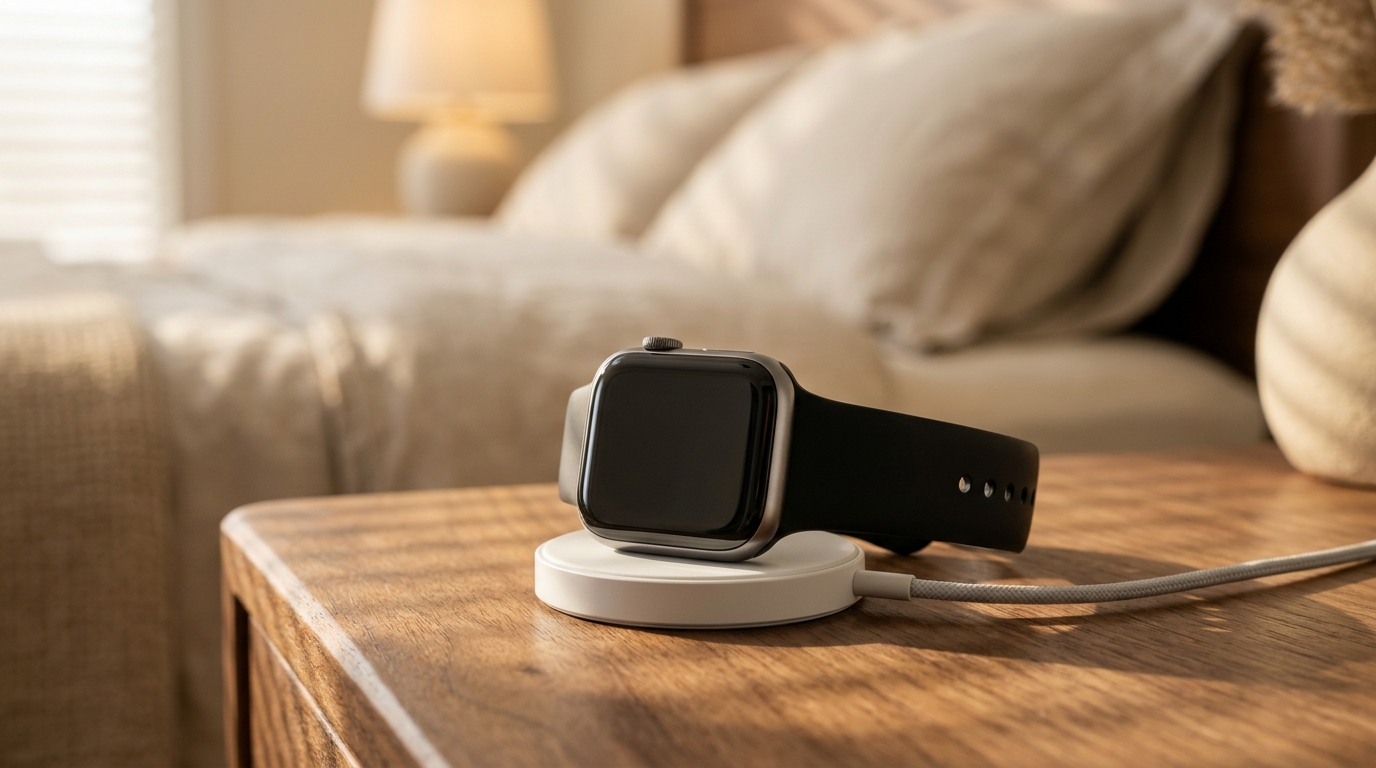
You strap on your Apple Watch in the morning expecting a full day of health tracking, discrete notifications, and workout logging, only to discover the charge gauge dropping to 20% before mid-afternoon. Experiencing an apple watch battery draining fast immediately following a watchOS software update is one of the most widespread and exasperating pain points across the wearable community. Whether updating from watchOS 10 to watchOS 11 or installing an incremental maintenance patch on Series 9, Series 10, or Apple Watch Ultra, unexpected post-update power hemorrhaging can turn a reliable daily tool into a device tethered to a magnetic charging puck.
Sudden battery decay following an operating system installation rarely signifies sudden physical battery failure. Instead, it reflects an intense intersection of post-update system migration tasks, background indexing routines, and occasionally stalled software daemons struggling with stale configuration caches. Understanding the technical mechanisms driving this power spike allows you to distinguish normal transient system behaviors from persistent bugs. In this technical troubleshooting guide, we break down why post-update power loss happens and outline eight grounded, systematic steps to restore normal all-day runtime on your wrist.
Why Is Your Apple Watch Battery Draining Fast After an Update?
When an Apple Watch exhibits severe battery drain within hours of applying a new watchOS release, the underlying cause is almost always software execution rather than hardware degradation. The Apple S-series System in Package (SiP) relies on aggressive dynamic frequency scaling and microsecond-level sleep states to maintain 18 to 36 hours of operating life from a battery cell that holds less than 2 watt-hours of energy. When background processes prevent the SiP from entering deep idle states, power draw escalates rapidly from a baseline idle rate of 2%–3% per hour to 8%–15% per hour.
Spotlight Indexing and HealthKit Database Re-Indexing
Immediately following an update, watchOS initiates extensive file system and database re-indexing routines:
- HealthKit Records Migration: Every update updates the schemas for cardiovascular baselines, heart rate variability (HRV), sleep staging, and workout data. The watch processor must re-traverse and re-index years of historical biometric data stored on disk.
- On-Device Machine Learning Baselines: Modern watchOS features—including training load calculations, vital signs thresholds, and personalized workout metrics—recalculate their historical baselines against new algorithmic models.
- Photos, Messages, and Media Caches: The on-device search index rebuilds thumbnail caches, contact sync tokens, and message threads.
Network Polling Loops and Wi-Fi Handshake Glitches
An Apple Watch uses a strict hierarchical communication protocol: Bluetooth Low Energy (BLE) to the paired iPhone is primary, trusted 2.4GHz/5GHz Wi-Fi is secondary, and standalone cellular (LTE) is tertiary. During major updates, paired network tokens between iOS and watchOS can become desynchronized.
When this synchronization desynchronizes, the watch enters a continuous mDNS broadcast loop, repeatedly polling local Wi-Fi access points or mesh routers even when resting two feet from its paired iPhone. Radio transmitters on wearable devices consume enormous energy relative to their battery size; an active Wi-Fi transceiver operating in continuous transmit mode can exhaust an entire Apple Watch battery in less than five hours.
Incompatible Third-Party Complications and Stalled Daemons
Every watch face complication operates via Apple's WidgetKit framework. When third-party developers have not yet updated their code for new watchOS memory limits or API deprecations, complications can get trapped in repetitive timeline refresh loops. Rather than quietly fetching background data every 15 to 30 minutes, an incompatible background extension can hammer the system daemon with dozens of requests per minute, preventing the display driver from dropping to its 1Hz low-power ambient refresh floor.
Immediate Diagnostic Steps: The 24-to-48-Hour Indexing Window
Before dismantling your watch configuration or executing nuclear troubleshooting procedures, establish your operational timeline. If fewer than 48 hours have elapsed since the update completed, your device is very likely still running required background migrations.
- The Overnight Charging Protocol: Place your Apple Watch on its magnetic charging puck overnight while ensuring your paired iPhone is charging on the same bedside nightstand and connected to local Wi-Fi. Connecting to wall power unlocks the watchOS scheduler, allowing the system to run CPU-intensive background tasks—such as Photo indexing, HealthKit schema upgrades, and cloud backups—at full speed without power rationing.
- Distinguishing Heat from Normal Activity: A watch that feels noticeably warm against your skin during simple idle wear is actively running high-overhead tasks or caught in a daemon loop. If the back crystal remains warm after 48 hours and two overnight charging sessions, manual intervention is required.
8 Proven Fixes for Rapid Apple Watch Battery Drain
If your Apple Watch continues to drain rapidly beyond the 48-hour post-update window, proceed sequentially through these eight technical remedies.
1. Execute a Coordinated Dual Force Restart
A standard power down leaves volatile runtime caches and daemon states partially preserved in flash memory. A synchronized force restart of both your Apple Watch and your paired iPhone resets network routing tables, flushes volatile memory buffers, and terminates runaway background execution loops.
- iPhone Force Restart: Press and quickly release Volume Up, press and quickly release Volume Down, then hold the Side Button until the Apple logo appears.
- Apple Watch Force Restart: Press and hold both the Side Button and the Digital Crown simultaneously for at least 10 seconds. Release both buttons the moment the Apple logo appears on the display.
- Sequence: Restart your iPhone first. Wait until your iPhone reaches the Lock Screen and connects to your local Wi-Fi network before initiating the Apple Watch force restart. This ensures the watch connects to a clean, stable Bluetooth pairing channel upon booting.
- Preserved Benefit: Immediately terminates stuck background migration scripts and memory-leaking system daemons without altering user settings or losing stored health metrics.
- Explicit Trade-Off: Requires approximately 3 to 5 minutes of downtime across both devices while temporary system caches are purged and rebuilt.
2. Audit Background App Refresh and Notification Mirroring
By default, newly installed watchOS versions re-enable background data fetch permissions for all native and installed third-party applications. Dozens of rarely used apps waking their background engines simultaneously can decimate your power curve.
- Configure Background App Refresh: On your Apple Watch, navigate to Settings > General > Background App Refresh. Rather than turning the master switch off entirely, audit the list manually. Disable refresh permissions for non-essential utilities, travel apps, games, and retail platforms, retaining background privileges solely for critical messaging, navigation, and primary health trackers.
- Streamline Notification Mirroring: Open the Watch app on your iPhone and tap Notifications. Scroll down to the "Mirror iPhone Alerts From" section. Toggle off alerts for shopping apps, news aggregators, and social feeds. Every mirrored notification lights up the display panel, engages the haptic Taptic Engine, and wakes the wireless radio.
- Preserved Benefit: Extends daily runtime by 15%–25% by preventing background processors from waking when apps are not actively displayed.
- Explicit Trade-Off: Non-critical applications will not fetch fresh content until you manually launch them from the app grid or dock.
3. Diagnose and Reset Local Wi-Fi Radio Routing Loops
A persistent bug in post-update networking manifests when the watch repeatedly tries and fails to negotiate WPA2/WPA3 handshakes on dual-band or mesh Wi-Fi networks. This keeps the onboard Broadcom/Apple wireless chip in an elevated power state.
- The 24-Hour Wi-Fi Isolation Test: Swipe up to access Control Center (or press the Side Button on watchOS 10 and newer) and tap the Wi-Fi icon to temporarily disconnect from local networks. Alternatively, open Settings > Wi-Fi directly on the watch and toggle the master switch to Off.
- Observe Battery Telemetry: Allow the watch to communicate exclusively via Bluetooth through your iPhone for one full workday. If your battery consumption stabilizes back to normal (1.5%–2.5% per hour), a Wi-Fi authentication or routing loop was the primary culprit.
- Permanent Fix: Re-enable Wi-Fi on the watch, open the Watch app on your iPhone, navigate to General > Reset, and select Reset Network Settings on your iPhone to refresh Wi-Fi credentials across both synced devices.
- Preserved Benefit: Eliminates aggressive radio transmission drain, which accounts for the vast majority of sudden 10%-per-hour battery collapses.
- Explicit Trade-Off: Standalone Wi-Fi functionality (such as receiving notifications when walking around the home without your iPhone) is temporarily unavailable during the diagnostic window.
4. Reset Stuck Walkie-Talkie and Audio Daemon States
Among wearable enthusiasts on tech support forums, the built-in Walkie-Talkie app is notorious for triggering background audio daemon hangs after watchOS updates. When an update alters audio session permissions, the Walkie-Talkie listener can remain continuously active in the background, listening for incoming connection handshakes even when not in use.
- Toggling Walkie-Talkie Availability: Swipe up to open Control Center, locate the Walkie-Talkie icon (yellow walkie-talkie outline), and toggle it off.
- Rebooting the Daemon: Open the Walkie-Talkie app on the watch. Scroll to the top, toggle "Available" off, force close the app (press the Side Button, swipe left on Walkie-Talkie, tap the red X), and restart your watch. If you never utilize Walkie-Talkie, press and hold the app icon on your home grid to delete the application entirely.
- Preserved Benefit: Completely removes an audio daemon loop that commonly causes mysterious mid-day battery heating and 5%–8% hourly loss.
- Explicit Trade-Off: You will not receive instantaneous voice pings from Walkie-Talkie contacts until you reopen the app and mark yourself available.
5. Streamline High-Frequency Complications on Always-On Displays
Watch faces loaded with multiple dynamic complications place substantial demands on the graphics rendering pipeline. While static complications consume virtually zero energy, complications that query live sensors—such as continuous altimeter readings, compass bearings, decibel noise monitors, and unoptimized third-party heart rate widgets—can prevent the Always-On display from entering its deepest 1Hz sleep state.
- Switch to an Optimized Dial: For a baseline comparison, switch temporarily to a clean, native dial or an OLED-optimized layout like the Vitals Rings face, which aggregates heart rate, active calories, and sleep milestones through lightweight WidgetKit timeline slices.
- Audit Complication Density: If you rely on modular layouts, read our comprehensive guide to mastering watchOS complications to learn which data providers leverage scheduled timeline caching versus active polling.
- Adjust Always-On Display Refresh: Open Settings > Display & Brightness > Always On. Under the "Always On" menu, tap Show Complication Data and disable real-time data display for sensitive or power-hungry metrics when your wrist is resting down.
- Preserved Benefit: Reduces display subsystem power draw by up to 30%, especially under bright outdoor ambient light conditions.
- Explicit Trade-Off: Live data fields dim and update once per minute rather than continuously until you raise your wrist.
6. Verify Maximum Battery Capacity and Hardware Degradation
If your Apple Watch is more than two years old, an update can often expose pre-existing electrochemical degradation. Lithium-ion pouch cells undergo chemical aging with every charge cycle, gradually losing total capacity and increasing internal impedance. Under the heightened processing loads of a new OS, an aging cell's voltage can drop precipitously.
- Check Electrochemical Health: On your Apple Watch, open Settings > Battery > Battery Health. Inspect the Maximum Capacity percentage.
- Interpreting Capacity:
- Evaluate Your Runtime Budget: Use our interactive Apple Watch battery estimator to simulate your exact runtime based on your model, health percentage, and daily workout hours. If physical battery health has permanently degraded, review our comprehensive Apple Watch trade-in checklist to evaluate repair versus upgrade value before visiting an Apple Store.
- Preserved Benefit: Clear diagnostic certainty distinguishing transient software issues from irreversible hardware degradation.
- Explicit Trade-Off: Diagnosing physical capacity below 80% indicates the device will require a battery replacement ($79–$99 via Apple Support) to restore factory runtime.
7. Unpair, Purge Corrupt Caches, and Re-Pair with Clean Configuration
If 48 hours have passed and selective setting adjustments fail to resolve severe power drain, a corrupted configuration file, broken pairing database, or orphaned watchOS system cache is the root issue. Unpairing and re-pairing performs an exhaustive re-initialization of the watchOS file system.
- Step 1: Initiate Unpairing: Keep your Apple Watch and iPhone in close physical proximity. Open the Watch app on your iPhone, select the My Watch tab, tap All Watches in the upper left, and tap the circular info (i) icon next to your active watch.
- Step 2: Remove Device: Tap Unpair Apple Watch. For cellular models, choose to keep your mobile cellular plan active. Enter your Apple Account password to disable Activation Lock.
- Automatic Backup Verification: During this unpairing process, your iPhone automatically creates an exhaustive, uncompressed local backup of your Apple Watch data (watch faces, app layouts, docks, and system preferences). Health and workout data is synced directly to encrypted iCloud Health storage and is never lost.
- Step 3: Re-Pair and Restore: Bring your watch near your iPhone to begin the setup pairing flow. Choose Restore from Backup to reinstall your personalized settings.
- The "Set Up as New" Fallback: If battery hemorrhaging persists even after restoring from backup, repeat the unpairing process and select Set Up as New Apple Watch. This purges legacy configuration plists and third-party database remnants dating back through years of sequential watchOS updates.
- Preserved Benefit: Deterministically clears corrupted system logs, fragmented caches, and orphaned daemon threads that cannot be reached through standard user settings.
- Explicit Trade-Off: Requires 25 to 45 minutes to unpair, restore, and re-sync your music, podcasts, and app credentials.
8. Toggle Low Power Mode Situationally
While working through troubleshooting steps or awaiting a secondary bug-fix update from Apple (such as a .1 or .2 dot release), you can instantly double your remaining battery life by taking advantage of native watchOS Low Power Mode.
- Activating Low Power Mode: Press the Side Button to access Control Center, tap the battery percentage badge, and toggle Low Power Mode to On. You can choose to enable it indefinitely or set a timer for 1, 2, or 3 days.
- What Remains Active: Activity tracking, step counts, heart rate monitoring during workouts, fall detection, emergency SOS, and normal notification delivery when paired with an iPhone continue to operate smoothly.
- What Is Throttled: Background heart rate measurements, blood oxygen readings, heart rate irregularity notifications, and the Always-On display are disabled.
- Explore Further Battery Optimizations: For deeper system-level tweaks and battery management techniques, explore our detailed Apple Watch battery life tips guide.
- Preserved Benefit: Increases device longevity by up to 100%, allowing a standard Apple Watch to easily last 36+ hours and an Apple Watch Ultra to exceed 60 hours on a single charge.
- Explicit Trade-Off: Disables continuous background biometric monitoring and turns off the Always-On display surface.
Key Takeaways
- Give the Device 48 Hours: Post-update background indexing of HealthKit records, photo assets, and on-device machine learning baselines is the primary cause of immediate battery drain. Charge the watch overnight on wall power next to your iPhone.
- Reboot Both Devices in Sequence: Perform a force restart on your iPhone first, followed by your Apple Watch (hold Side Button + Digital Crown for 10 seconds), to flush stale network buffers and stalled background daemons.
- Audit Radios and Apps: Temporarily disable Wi-Fi to identify radio loops, prune Background App Refresh permissions, and toggle off unused Walkie-Talkie audio daemons.
- Evaluate Hardware Health: Check Settings > Battery > Battery Health. If maximum capacity has dropped below 80%, physical degradation is the underlying bottleneck.
- Unpair When Stuck: If drain persists beyond 48 hours, unpairing and restoring your Apple Watch purges corrupt system caches and resolves 95% of stubborn post-update battery anomalies.