How to Make Your Own Custom Apple Watch Face in 2026
Learn how to make apple watch face designs in 2026. Step-by-step custom wallpaper cropping, WidgetKit complication layouts, and native watchOS personalization.
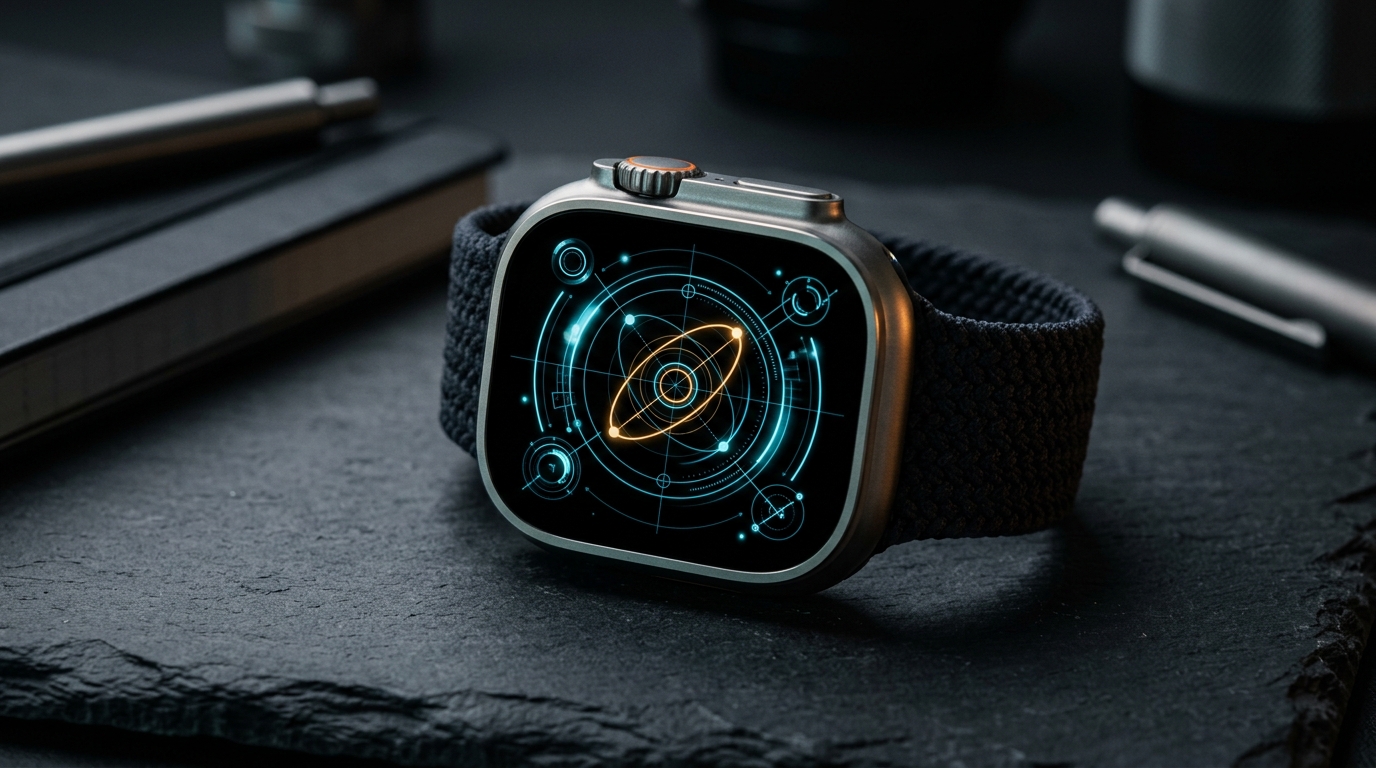
Apple's wearable operating system presents a deliberate architectural boundary: watchOS does not allow third-party developers to inject arbitrary, low-level render loops into the system clockface engine. If you search for how to make apple watch face designs from scratch, you will quickly discover that watchOS is not WearOS. Apple does not provide a public C++ or Swift SDK to compile standalone `.watchface` files from an empty canvas.
However, understanding the system boundaries transforms customization from a frustrating hunt into an exact craft. Through native watchOS photo engines, WidgetKit complication pipelines, and built-in face sharing protocols, you can assemble deeply personalized dials tailored to your exact aesthetic and telemetry needs. This guide details how to make apple watch face layouts that look bespoke, refresh instantly, and respect your device's battery life.
How to Make Apple Watch Face Layouts: The 3 Core Methods
Creating a custom face on modern watchOS hardware—from Apple Watch Series 9 and Series 10 to Apple Watch Ultra 2—involves three proven technical pathways. Each method balances visual individuality against hardware performance.
Method 1: Pixel-Perfect Custom Photo and Graphic Wallpapers
The most direct way to build a completely unique visual theme is pairing Apple's native Photos or Portraits watch face with custom graphic assets. Whether you are generating abstract 3D artwork, architectural blueprints, or minimalist typography backgrounds, display geometry dictates visual sharpness.
Modern Apple Watch displays feature slightly curved OLED panels with specific pixel dimensions:
- Apple Watch Ultra & Ultra 2 (49mm): 410 x 502 pixels (OLED Retina, up to 3000 nits)
- Apple Watch Series 10 (46mm): 416 x 496 pixels (Wide-angle OLED)
- Apple Watch Series 10 (42mm): 374 x 446 pixels
- Apple Watch Series 9 & 8 (45mm): 396 x 484 pixels
- Apple Watch Series 9 & 8 (41mm): 352 x 430 pixels
Once your graphic is saved to your iPhone Photo Library: 1. Open the Photos app on iPhone and select your exported graphic. 2. Tap the Share button in the lower-left corner. 3. Scroll down and tap Create Watch Face. 4. Choose between Photos Watch Face (flat background with custom digital time position and two complication slots) or Portraits Face (which utilizes depth maps to place the time behind subjects). 5. Choose your complication widgets (such as Date at top, Activity or Battery at bottom) and tap Add.
- Preserved Benefit: Delivers completely original, custom visual artwork rendered natively at 60 frames per second with zero background battery penalties.
- Explicit Trade-Off: Restricts complication density to only one or two slots, precluding complex multi-sensor dashboards.
Method 2: High-Density Modular Dashboards via WidgetKit Complications
If your goal is information density rather than static imagery, building a custom face means curating native complication slots within Apple's modular frameworks. Faces like Modular, Modular Ultra, and Infograph offer up to seven distinct complication zones.
Rather than relying on generic stock widgets, you can pair native layouts with specialized visual complication collections. For example, our Blueprint Dashboard face transforms the Modular grid into an architectural technical console, while the Doodle Dashboard face brings playful hand-drawn aesthetics to high-contrast dials. For an overview of clean layouts that minimize visual noise, explore our guide to the Best Minimal Apple Watch Faces.
To construct an information-dense custom layout: 1. Long-press your current watch face on Apple Watch and swipe left until you reach New (+). 2. Rotate the Digital Crown to select Modular (or Modular Ultra on Ultra models). 3. Swipe right to the Complications customization screen. 4. Tap each zone to assign dedicated widgets: large center slots are best utilized for continuous telemetry (like heart rate graphs or weather radars), while corner sub-dials handle rapid status checks (battery percentage, UV index, or workout quick-launches).
- Preserved Benefit: Provides instantaneous access to multi-metric telemetry across health, environmental, and calendar sensors with deep watchOS integration.
- Explicit Trade-Off: Requires deliberate slot curation; filling every zone without a consistent aesthetic palette leads to cognitive visual clutter.
Method 3: Sharing and Importing Curated `.watchface` Files
Introduced in watchOS 7 and refined across watchOS 10 and 11, Apple's native Watch Face Sharing system allows users and designers to package complete face configurations—including typography selections, color schemes, and complication mappings—into a shareable `.watchface` file.
When you install a `.watchface` package from a friend or trusted community, your iPhone inspects the bundled metadata. If the face references third-party complications you do not own, iOS prompts you to download the required companion apps from the App Store or install the face with placeholder slots.
To share a customized configuration you created: 1. Touch and hold the watch face on your Apple Watch display. 2. Tap the Share icon (the arrow pointing outward). 3. Select a recipient via Messages or Mail. Alternatively, in the iPhone Watch app, select the face from My Faces, tap the Share button in the top navigation bar, and export the `.watchface` bundle via AirDrop or Files.
If you ever need to reorganize or switch between multiple saved configurations, check our practical tutorial on How to Change Your Apple Watch Face.
- Preserved Benefit: Allows one-tap duplication and backup of intricate complication arrangements without manual slot-by-slot reassignment.
- Explicit Trade-Off: Third-party complications embedded in the file will not display data until their respective companion apps are installed and configured on the watch.
Why Standalone Wrapper Apps Are a Battery and Usability Trap
When looking up how to make apple watch face layouts on Reddit or forums, users often encounter wrapper apps like Clockology or Facer. These tools claim to unlock fully bespoke digital dials mimicking luxury mechanical chronographs or retro gaming consoles. However, understanding their underlying mechanics explains why veteran watchOS users avoid them for daily wear.
Apple does not allow apps to replace the native watch face system. Consequently, wrapper apps operate by running an active foreground app loop that mimics a clock face. To keep the screen from returning to your actual watch dial, these tools require you to configure watchOS settings: `Settings > General > Return to Clock > After 1 hour` (or `Max`).
This workaround introduces severe functional compromises:
- Accelerated Battery Depletion: Maintaining an active foreground application continuously prevents the watch's S-series chip from entering deep low-power sleep states, often doubling idle battery draw.
- Wake Latency and App Reversions: If you drop your wrist or an incoming notification triggers, the watch frequently defaults back to your stock Apple dial, requiring manual app relaunches.
- Always-On Display Limitations: Native watchOS faces drop to a 1Hz refresh rate with dimmed luminance on OLED displays to protect battery. Third-party wrapper apps cannot access low-level AOD display controllers cleanly, causing stuttering or blank screens upon wrist drops.
Step-by-Step: Assembling an Architectural Watch Face
To demonstrate how to make apple watch face configurations that balance utility and aesthetic polish, follow this practical build using a technical blueprint theme:
1. Prepare the Backdrop: Launch the Apple Watch Photo Cropper on your browser. Upload an architectural grid or blueprint graphic, select your Apple Watch casing size, and export the centered 16:9 crop. 2. Create the Base Face: In the iOS Watch app, navigate to Face Gallery > Photos, add your exported graphic, and set the color style to None or Duo-Tone Blue for maximum contrast. 3. Configure Status Complications: Set the Top Complication to Date and the Bottom Complication to your primary telemetry metric (such as Battery or Heart Rate). 4. Tune Display Brightness & Always-On: Navigate to `Settings > Display & Brightness` on your watch. Ensure Always On is toggled On, and disable unnecessary background app refresh for unused utilities under `Settings > General > Background App Refresh` to extend runtime. 5. Pair with Playful Styles: If you prefer illustrated aesthetics over architectural grids, you can apply similar layout principles with playful watch faces—see our in-depth walkthrough on the Doodle Apple Watch Face: Fun Sketches & Retro Styles.
Key Takeaways
- Apple restricts third-party watch face engines: You cannot sideload arbitrary executable clock faces into watchOS; customization relies on Photos/Portraits, WidgetKit complications, and `.watchface` sharing.
- Pixel dimensions matter for custom wallpapers: Match your graphics to your exact hardware resolution (e.g. 410x502 for Apple Watch Ultra, 416x496 for Series 10 46mm) using tools like the Apple Watch Photo Cropper to avoid blurry downsampling.
- Native complications preserve battery health: Modular faces populated with native WidgetKit complications maintain full 1Hz Always-On Display efficiency and 18-to-36 hour battery endurance.
- Avoid wrapper app workarounds: Foreground clock apps drain battery rapidly, suffer from wake latency, and frequently revert to stock watch faces upon receiving alerts.